

Overview
The List View displays Gantt-style list of all your roadmap items in a structured, expandable list format. It’s ideal for reviewing details, managing large numbers of items, and understanding hierarchical relationships.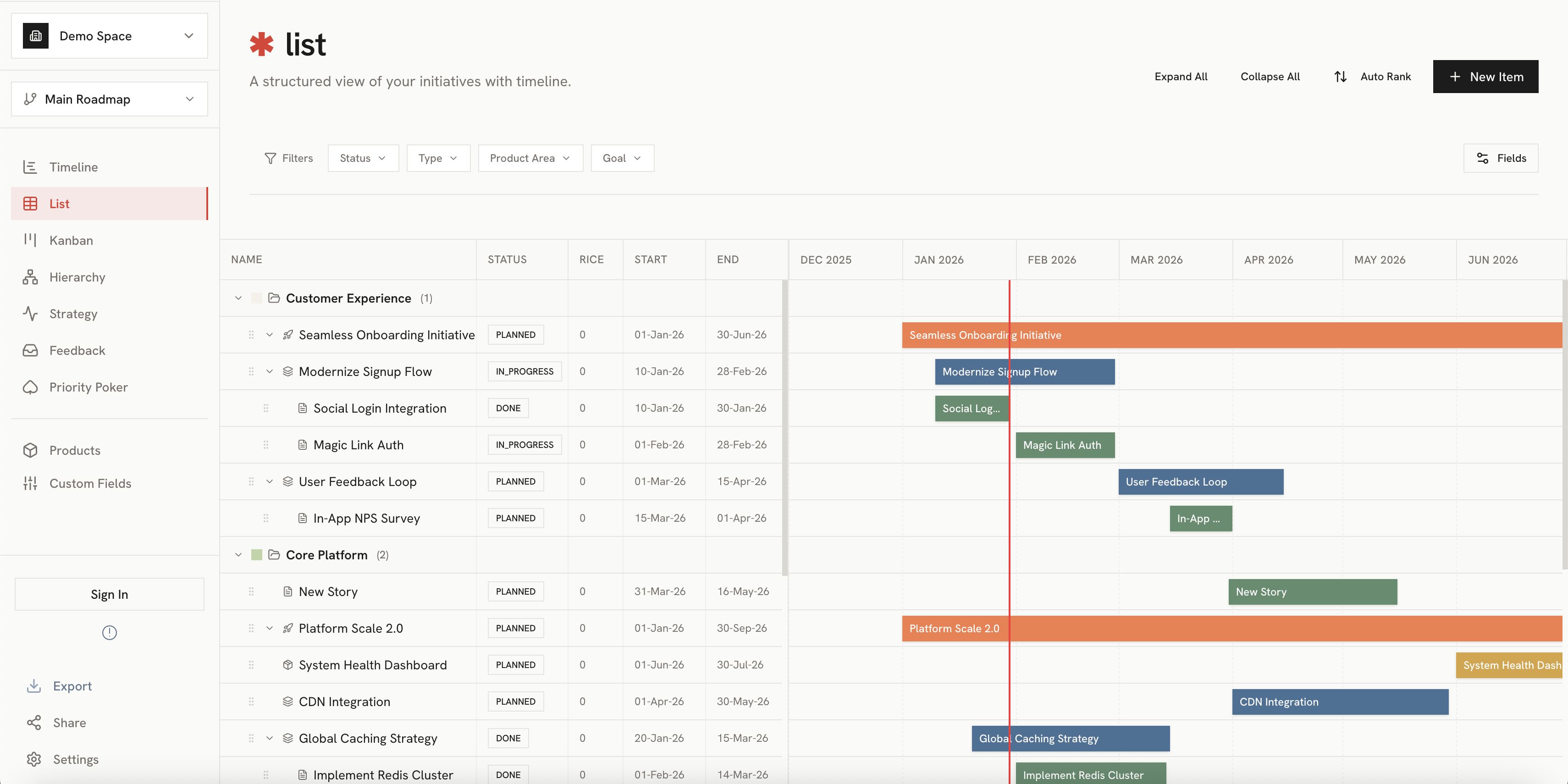
Key Features
Hierarchical Display
Items are displayed with their parent-child relationships:- Indent levels: Child items are indented under their parents
- Expand/Collapse: Click the arrow to show or hide children
- Expand All / Collapse All: Use toolbar buttons to expand or collapse everything
Grouping Options
Group items by different dimensions using the grouping selector:Columns
The list displays key information in columns:- Name: Item title with expand/collapse control
- Type: Item type badge (Initiative, Epic, Story, Task, Bug)
- Dates: Start and end dates
- Product Area: Assigned product area
- Priority: Strategic priority alignment

Interacting with Items
Selecting Items
- Single click: Select an item and open its detail panel
- Multi-select: Hold
Cmd(Mac) orCtrl(Windows) and click multiple items
Editing Inline
Some fields can be edited directly in the list:- Click on a cell to enter edit mode
- Make your changes
- Press
Enteror click away to save
Drag and Drop
Reorder items or change hierarchy by dragging:- Click and hold on an item
- Drag to a new position
- Drop to reorder or nest under a new parent
Filtering
Use the filter bar to narrow down the displayed items:
- Item type
- Product area
- Date range
- Strategic priority
- Custom fields
Filters persist when switching between views. See Using Filters for details.
Export
Export your list view to share with stakeholders:- PDF: A formatted document with all visible items
- Image: A snapshot of the current list state
Best Practices
Bulk Review
Bulk Review
Use Expand All to see every item, then use filters to focus on specific areas.
Hierarchy Management
Hierarchy Management
Drag and drop items to quickly reorganize your hierarchy without opening each item.
Status Updates
Status Updates
Group by item type to quickly review and update all items of a specific type.
Related
Timeline View
See items on a visual timeline.
Item Hierarchy
Learn more about parent-child relationships.