

Overview
The Kanban View displays your items in columns, making it easy to track status and move work through stages. It’s ideal for sprint planning, status tracking, and workflow management.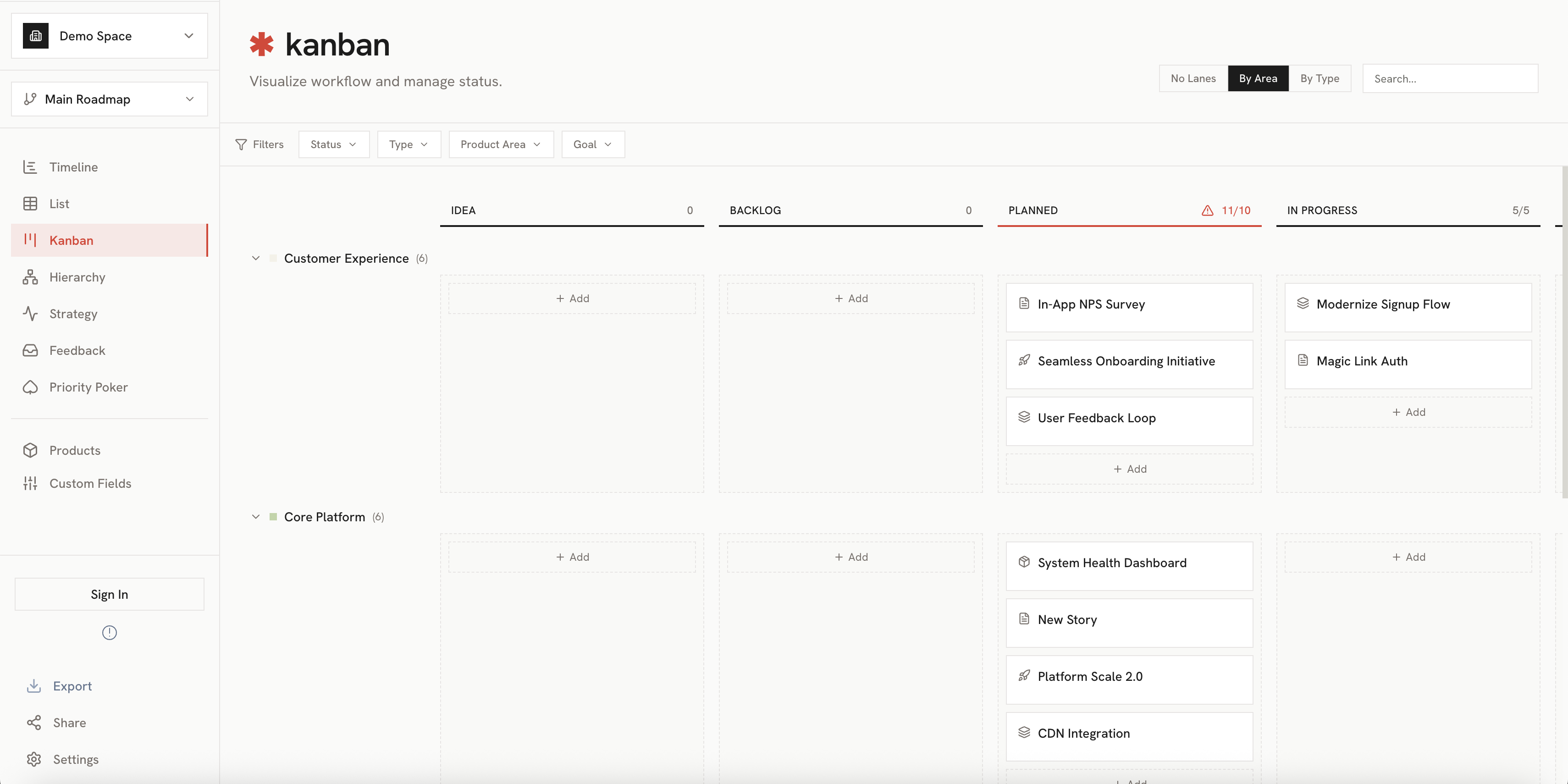
Key Features
Columns
Items are organized into columns based on their status or other properties:- Default columns: To Do, In Progress, Done
- Custom columns: Configure columns to match your workflow
Cards
Each item appears as a card showing:- Item name: The title of the item
- Item type badge: Color-coded indicator
- Key details: Dates, assignee, priority
- Child indicator: Shows if the item has children

Interacting with Items
Moving Cards
Drag cards between columns to update their status:- Click and hold on a card
- Drag to another column
- Release to update the item’s status
Card Details
Click on a card to open the detail panel:- View and edit all item properties
- See parent and child items
- Update status, dates, and more
Reordering
Drag cards within a column to change their order:- Click and hold on a card
- Drag up or down within the column
- Release to reorder
Column Configuration
Customize your Kanban board columns:
- Add columns: Create new status columns
- Rename columns: Use terminology that fits your team
- Reorder columns: Arrange columns to match your workflow
- Column limits: Set WIP (work in progress) limits
Filtering
Use the filter bar to focus on specific items:Best Practices
Sprint Planning
Sprint Planning
Use Kanban for active sprint work. Filter to current sprint items and track progress.
Daily Standups
Daily Standups
Review the board in daily standups. Focus on “In Progress” column and blockers.
WIP Limits
WIP Limits
Set column limits to prevent overloading. This helps maintain focus and flow.
Related
List View
See items in a detailed list format.
Creating Items
Add new items to your Kanban board.