

Overview
The Hierarchy View displays your items in a flow diagram format, making it easy to understand dependencies and parent-child relationships. It’s ideal for visualizing complex structures and tracing work back to strategic initiatives.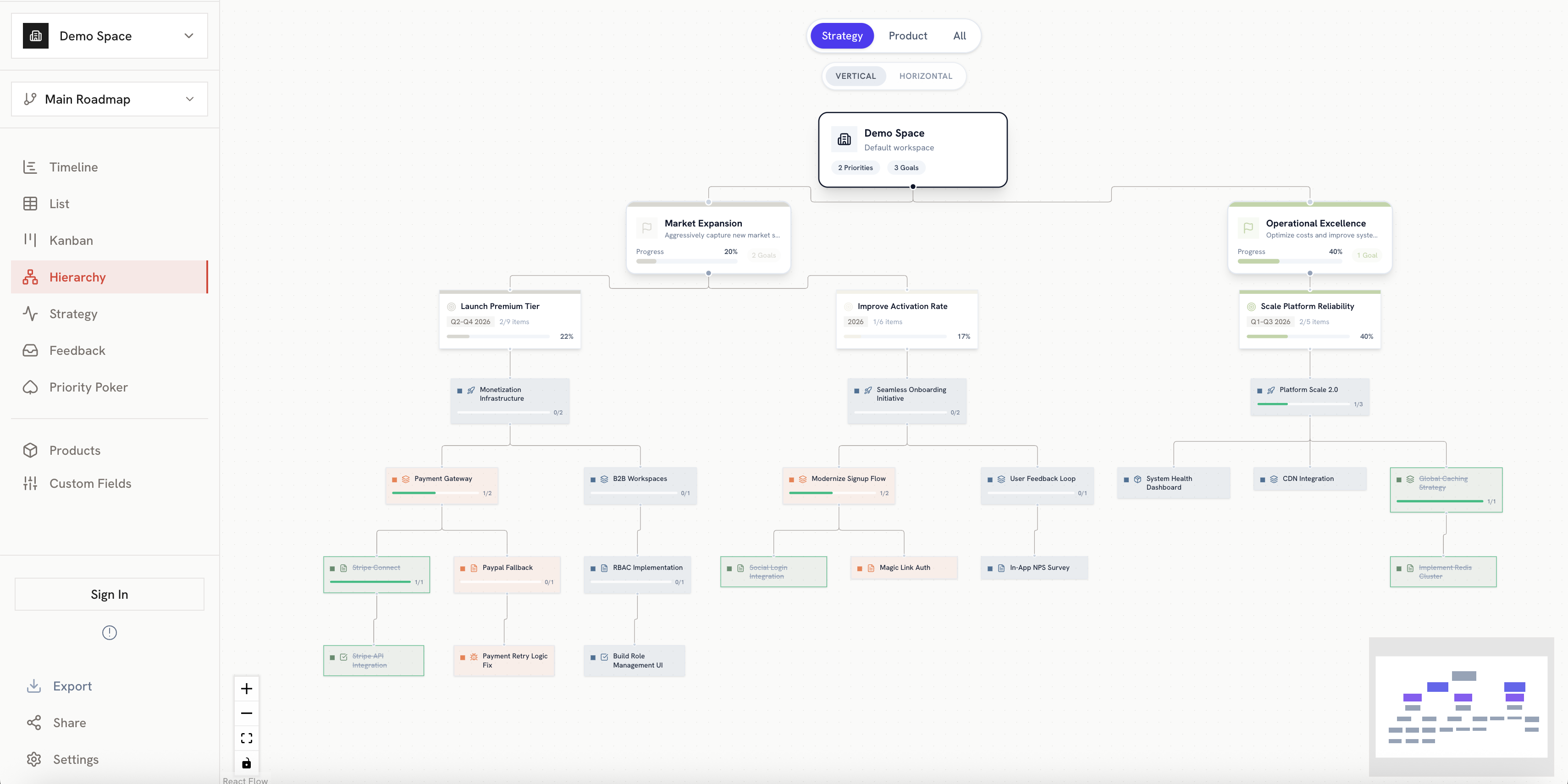
Key Features
Flow Diagram
Items are displayed as nodes connected by lines showing relationships:- Nodes: Each item appears as a card/node
- Connections: Lines connect parent items to their children
- Flow direction: Typically flows from left to right or top to bottom
Node Display
Each node shows:- Item name: The title of the item
- Item type badge: Color-coded indicator (Initiative, Epic, Story, etc.)
- Key details: Status, dates, product area

Multi-Level Hierarchy
The view supports deep nesting:Interacting with the View
Navigation
- Pan: Click and drag on the canvas to move around
- Zoom: Use scroll wheel or pinch to zoom in/out
- Fit to view: Use the toolbar button to fit all nodes on screen
Selecting Nodes
Click on a node to:- Highlight the node and its connections
- Open the detail panel for editing
- See related parent and child items
Expanding/Collapsing
Control which levels are visible:- Collapse: Hide children of a node to simplify the view
- Expand: Show all children of a node
- Expand All / Collapse All: Use toolbar buttons for bulk actions
Grouping
Items can be grouped to show organizational context:
Use Cases
Strategic Alignment Review
Strategic Alignment Review
Use the hierarchy view to trace how individual tasks connect back to strategic initiatives.
Dependency Analysis
Dependency Analysis
Visualize complex dependencies and identify potential bottlenecks.
Stakeholder Presentations
Stakeholder Presentations
Export the hierarchy view to show work breakdown structure to stakeholders.
Onboarding
Onboarding
Help new team members understand how work is organized and connected.
Best Practices
- Start from Initiatives: Begin at the top level to see the full picture
- Use grouping: Group by product to see how different product areas relate
- Collapse completed work: Hide finished items to focus on active work
- Export for documentation: Use the export feature to include in project docs
Related
Item Hierarchy
Learn how to create and manage parent-child relationships.
Timeline View
See the same items on a timeline.