> ## Documentation Index
> Fetch the complete documentation index at: https://wey.io/docs/llms.txt
> Use this file to discover all available pages before exploring further.
# Timeline View
> Visualize your roadmap on a Gantt-style timeline
## Overview
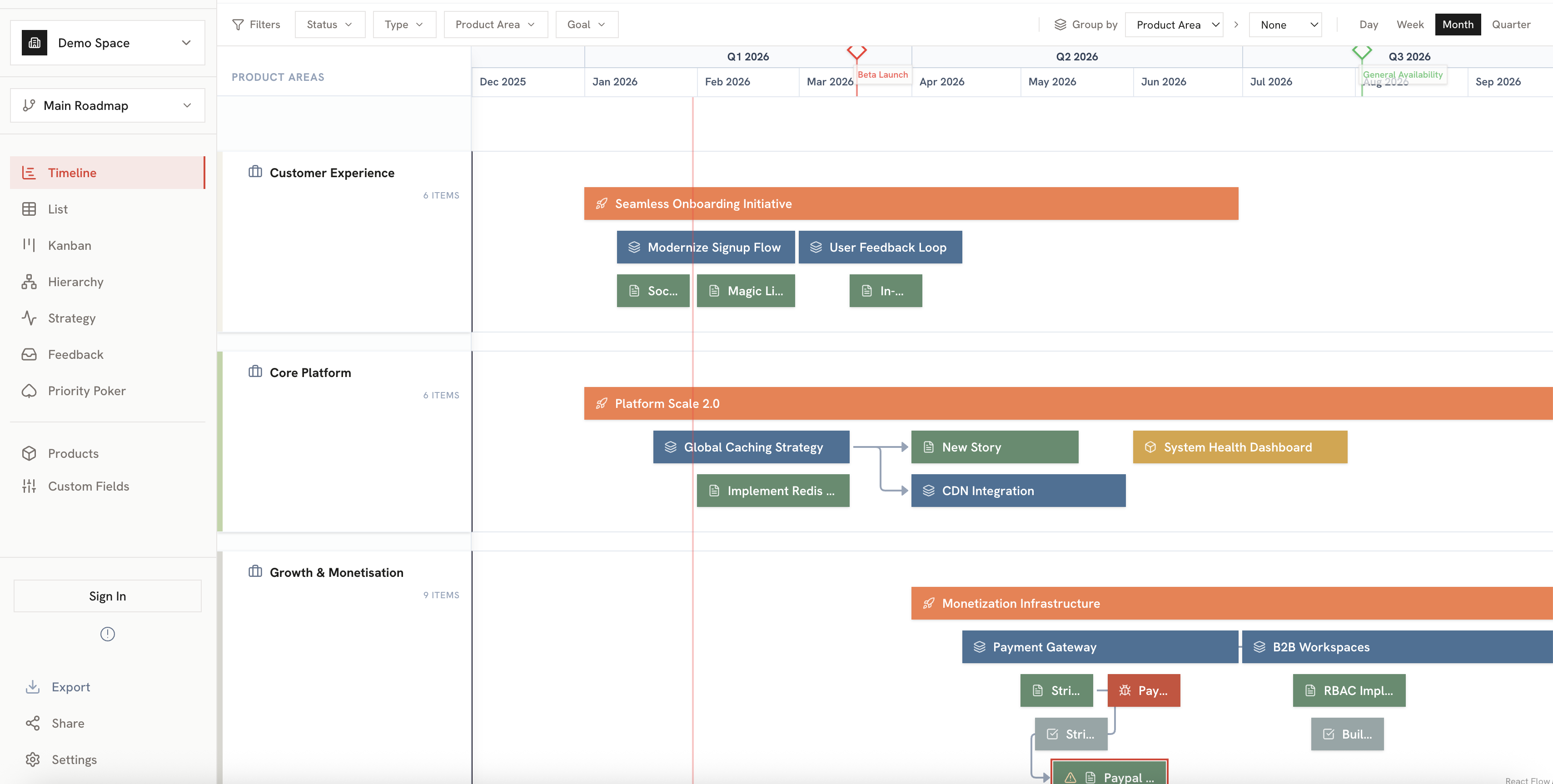
The Timeline View displays your roadmap items on a horizontal timeline, making it easy to see when work is planned and how items relate to each other over time.
 ## Key Features
### Time Navigation
* **Zoom levels**: Switch between day, week, month, and quarter views
* **Date range**: Scroll horizontally to see past and future items
* **Today marker**: A vertical line indicates the current date
### Grouping Options
Items can be grouped by different dimensions:
| Grouping | Description |
| ---------------------- | ------------------------------------------------------ |
| **Product Area** | Group items by their assigned product area (swimlanes) |
| **Strategic Priority** | Group items by priority alignment |
| **Goal** | Group items by their linked goal |
Use the grouping selector in the toolbar to switch between grouping modes.
### Item Display
Each item on the timeline shows:
* **Item bar**: Spans from start date to end date
* **Item name**: Displayed on the bar
* **Item type badge**: Color-coded indicator (Initiative, Epic, Story, etc.)
* **Color coding**: Based on strategic priority or custom colors
## Key Features
### Time Navigation
* **Zoom levels**: Switch between day, week, month, and quarter views
* **Date range**: Scroll horizontally to see past and future items
* **Today marker**: A vertical line indicates the current date
### Grouping Options
Items can be grouped by different dimensions:
| Grouping | Description |
| ---------------------- | ------------------------------------------------------ |
| **Product Area** | Group items by their assigned product area (swimlanes) |
| **Strategic Priority** | Group items by priority alignment |
| **Goal** | Group items by their linked goal |
Use the grouping selector in the toolbar to switch between grouping modes.
### Item Display
Each item on the timeline shows:
* **Item bar**: Spans from start date to end date
* **Item name**: Displayed on the bar
* **Item type badge**: Color-coded indicator (Initiative, Epic, Story, etc.)
* **Color coding**: Based on strategic priority or custom colors
 ## Interacting with Items
### Viewing Details
Click on any item to open its detail panel where you can:
* View and edit all item properties
* See parent and child items
* Add notes and attachments
### Moving Items
Drag items horizontally to change their dates:
1. Click and hold on an item
2. Drag left or right to adjust timing
3. Release to save the new dates
### Resizing Items
Adjust item duration by dragging the edges:
1. Hover over the left or right edge of an item
2. Click and drag to extend or shorten
3. Release to save
## Swimlanes
When grouped by Product Area, items appear in horizontal swimlanes:
## Interacting with Items
### Viewing Details
Click on any item to open its detail panel where you can:
* View and edit all item properties
* See parent and child items
* Add notes and attachments
### Moving Items
Drag items horizontally to change their dates:
1. Click and hold on an item
2. Drag left or right to adjust timing
3. Release to save the new dates
### Resizing Items
Adjust item duration by dragging the edges:
1. Hover over the left or right edge of an item
2. Click and drag to extend or shorten
3. Release to save
## Swimlanes
When grouped by Product Area, items appear in horizontal swimlanes:
 * Each swimlane represents a product area
* Collapse/expand swimlanes to focus on specific areas
* Swimlane colors can be customized
## Best Practices
Use week or 2-week zoom to plan sprints. Group by product area to see team capacity.
Switch to month or quarter zoom for strategic planning sessions.
Use the export feature to share timeline screenshots or PDFs with stakeholders.
## Related
Export your timeline as an image or PDF.
See the same items in a structured list format.
* Each swimlane represents a product area
* Collapse/expand swimlanes to focus on specific areas
* Swimlane colors can be customized
## Best Practices
Use week or 2-week zoom to plan sprints. Group by product area to see team capacity.
Switch to month or quarter zoom for strategic planning sessions.
Use the export feature to share timeline screenshots or PDFs with stakeholders.
## Related
Export your timeline as an image or PDF.
See the same items in a structured list format.