> ## Documentation Index
> Fetch the complete documentation index at: https://wey.io/docs/llms.txt
> Use this file to discover all available pages before exploring further.
# List View
> View and manage items in a structured list with hierarchy
## Overview
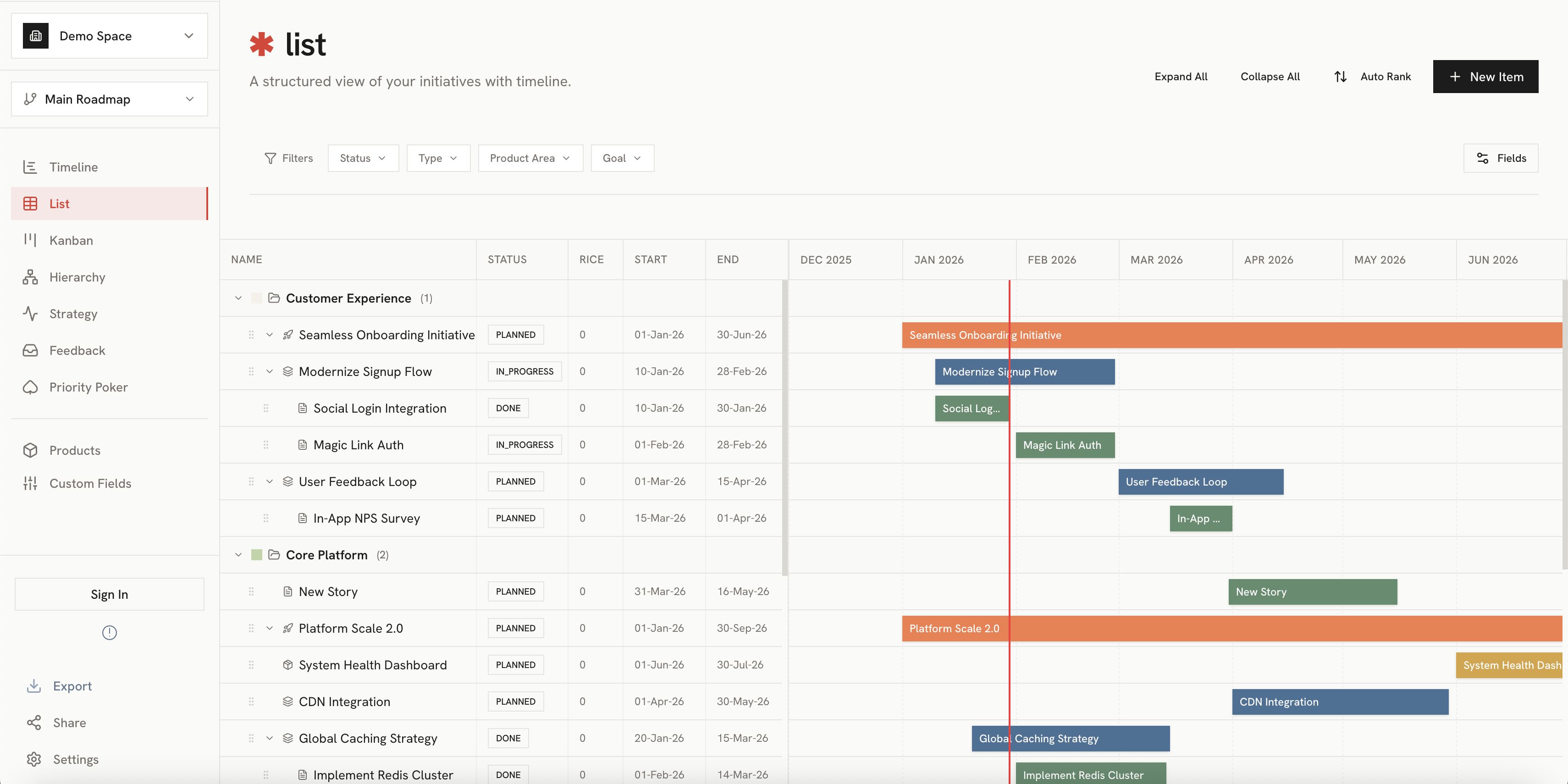
The List View displays Gantt-style list of all your roadmap items in a structured, expandable list format. It's ideal for reviewing details, managing large numbers of items, and understanding hierarchical relationships.
 ## Key Features
### Hierarchical Display
Items are displayed with their parent-child relationships:
* **Indent levels**: Child items are indented under their parents
* **Expand/Collapse**: Click the arrow to show or hide children
* **Expand All / Collapse All**: Use toolbar buttons to expand or collapse everything
### Grouping Options
Group items by different dimensions using the grouping selector:
| Grouping | Description |
| ---------------------- | -------------------------------------- |
| **Product** | Group by product, then product area |
| **Product Area** | Group directly by product area |
| **Strategic Priority** | Group by priority level |
| **Item Type** | Group by Initiative, Epic, Story, etc. |
### Columns
The list displays key information in columns:
* **Name**: Item title with expand/collapse control
* **Type**: Item type badge (Initiative, Epic, Story, Task, Bug)
* **Dates**: Start and end dates
* **Product Area**: Assigned product area
* **Priority**: Strategic priority alignment
## Key Features
### Hierarchical Display
Items are displayed with their parent-child relationships:
* **Indent levels**: Child items are indented under their parents
* **Expand/Collapse**: Click the arrow to show or hide children
* **Expand All / Collapse All**: Use toolbar buttons to expand or collapse everything
### Grouping Options
Group items by different dimensions using the grouping selector:
| Grouping | Description |
| ---------------------- | -------------------------------------- |
| **Product** | Group by product, then product area |
| **Product Area** | Group directly by product area |
| **Strategic Priority** | Group by priority level |
| **Item Type** | Group by Initiative, Epic, Story, etc. |
### Columns
The list displays key information in columns:
* **Name**: Item title with expand/collapse control
* **Type**: Item type badge (Initiative, Epic, Story, Task, Bug)
* **Dates**: Start and end dates
* **Product Area**: Assigned product area
* **Priority**: Strategic priority alignment
 ## Interacting with Items
### Selecting Items
* **Single click**: Select an item and open its detail panel
* **Multi-select**: Hold `Cmd` (Mac) or `Ctrl` (Windows) and click multiple items
### Editing Inline
Some fields can be edited directly in the list:
1. Click on a cell to enter edit mode
2. Make your changes
3. Press `Enter` or click away to save
### Drag and Drop
Reorder items or change hierarchy by dragging:
1. Click and hold on an item
2. Drag to a new position
3. Drop to reorder or nest under a new parent
## Filtering
Use the filter bar to narrow down the displayed items:
## Interacting with Items
### Selecting Items
* **Single click**: Select an item and open its detail panel
* **Multi-select**: Hold `Cmd` (Mac) or `Ctrl` (Windows) and click multiple items
### Editing Inline
Some fields can be edited directly in the list:
1. Click on a cell to enter edit mode
2. Make your changes
3. Press `Enter` or click away to save
### Drag and Drop
Reorder items or change hierarchy by dragging:
1. Click and hold on an item
2. Drag to a new position
3. Drop to reorder or nest under a new parent
## Filtering
Use the filter bar to narrow down the displayed items:
 Filter options include:
* Item type
* Product area
* Date range
* Strategic priority
* Custom fields
Filters persist when switching between views. See [Using Filters](/docs/filters/using-filters) for details.
## Export
Export your list view to share with stakeholders:
* **PDF**: A formatted document with all visible items
* **Image**: A snapshot of the current list state
See [Export Options](/docs/sharing/export-options) for more details.
## Best Practices
Use Expand All to see every item, then use filters to focus on specific areas.
Drag and drop items to quickly reorganize your hierarchy without opening each item.
Group by item type to quickly review and update all items of a specific type.
## Related
See items on a visual timeline.
Learn more about parent-child relationships.
Filter options include:
* Item type
* Product area
* Date range
* Strategic priority
* Custom fields
Filters persist when switching between views. See [Using Filters](/docs/filters/using-filters) for details.
## Export
Export your list view to share with stakeholders:
* **PDF**: A formatted document with all visible items
* **Image**: A snapshot of the current list state
See [Export Options](/docs/sharing/export-options) for more details.
## Best Practices
Use Expand All to see every item, then use filters to focus on specific areas.
Drag and drop items to quickly reorganize your hierarchy without opening each item.
Group by item type to quickly review and update all items of a specific type.
## Related
See items on a visual timeline.
Learn more about parent-child relationships.