> ## Documentation Index
> Fetch the complete documentation index at: https://wey.io/docs/llms.txt
> Use this file to discover all available pages before exploring further.
# Kanban View
> Manage work with a visual column-based board
## Overview
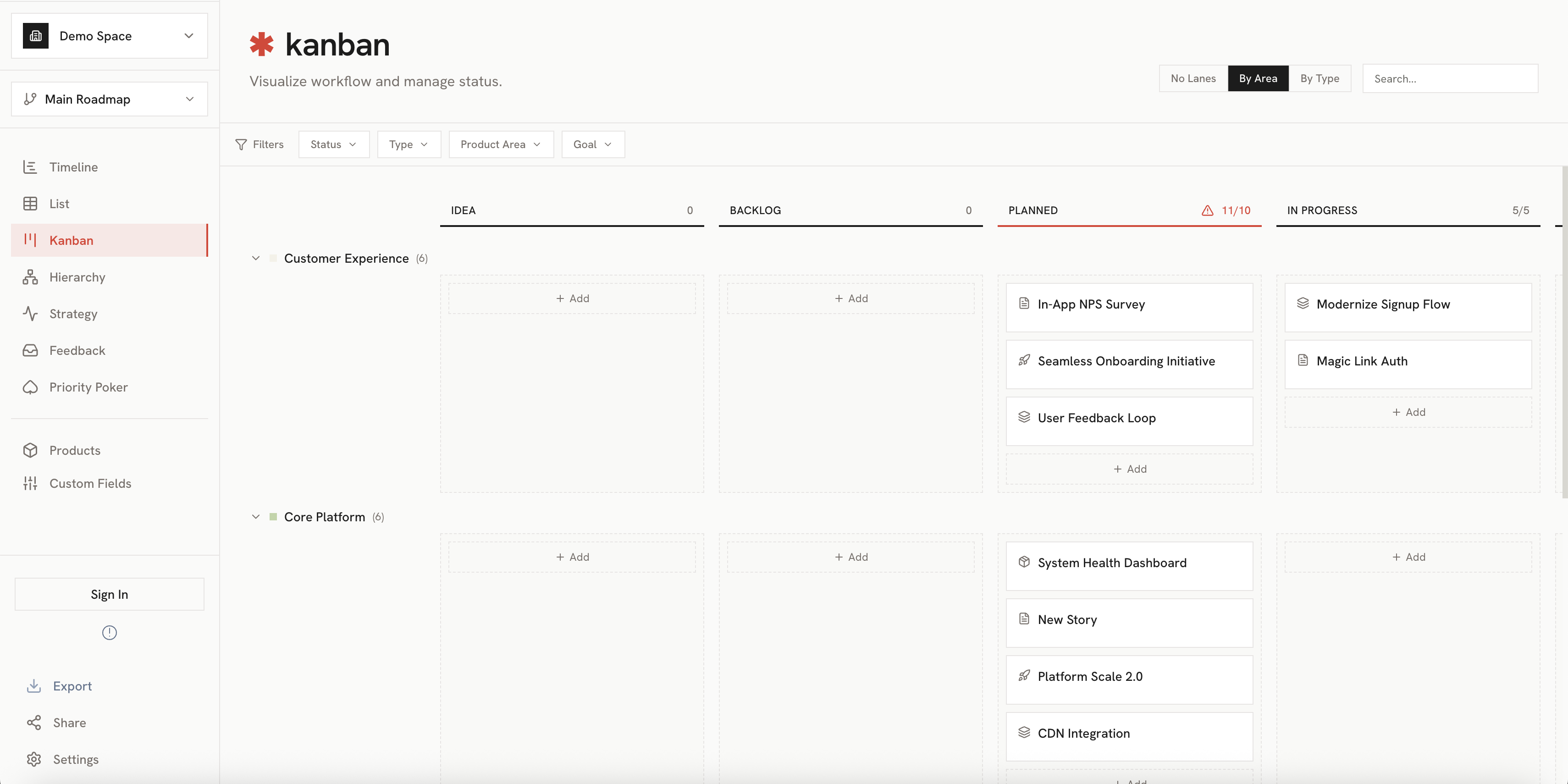
The Kanban View displays your items in columns, making it easy to track status and move work through stages. It's ideal for sprint planning, status tracking, and workflow management.
 ## Key Features
### Columns
Items are organized into columns based on their status or other properties:
* **Default columns**: To Do, In Progress, Done
* **Custom columns**: Configure columns to match your workflow
### Cards
Each item appears as a card showing:
* **Item name**: The title of the item
* **Item type badge**: Color-coded indicator
* **Key details**: Dates, assignee, priority
* **Child indicator**: Shows if the item has children
## Key Features
### Columns
Items are organized into columns based on their status or other properties:
* **Default columns**: To Do, In Progress, Done
* **Custom columns**: Configure columns to match your workflow
### Cards
Each item appears as a card showing:
* **Item name**: The title of the item
* **Item type badge**: Color-coded indicator
* **Key details**: Dates, assignee, priority
* **Child indicator**: Shows if the item has children
 ## Interacting with Items
### Moving Cards
Drag cards between columns to update their status:
1. Click and hold on a card
2. Drag to another column
3. Release to update the item's status
### Card Details
Click on a card to open the detail panel:
* View and edit all item properties
* See parent and child items
* Update status, dates, and more
### Reordering
Drag cards within a column to change their order:
1. Click and hold on a card
2. Drag up or down within the column
3. Release to reorder
## Column Configuration
Customize your Kanban board columns:
## Interacting with Items
### Moving Cards
Drag cards between columns to update their status:
1. Click and hold on a card
2. Drag to another column
3. Release to update the item's status
### Card Details
Click on a card to open the detail panel:
* View and edit all item properties
* See parent and child items
* Update status, dates, and more
### Reordering
Drag cards within a column to change their order:
1. Click and hold on a card
2. Drag up or down within the column
3. Release to reorder
## Column Configuration
Customize your Kanban board columns:
 * **Add columns**: Create new status columns
* **Rename columns**: Use terminology that fits your team
* **Reorder columns**: Arrange columns to match your workflow
* **Column limits**: Set WIP (work in progress) limits
## Filtering
Use the filter bar to focus on specific items:
| Filter | Description |
| ---------------- | ----------------------------------------------- |
| **Item Type** | Show only specific types (Epics, Stories, etc.) |
| **Product Area** | Filter by product area |
| **Date Range** | Show items within a date range |
| **Priority** | Filter by strategic priority |
## Best Practices
Use Kanban for active sprint work. Filter to current sprint items and track progress.
Review the board in daily standups. Focus on "In Progress" column and blockers.
Set column limits to prevent overloading. This helps maintain focus and flow.
## Related
See items in a detailed list format.
Add new items to your Kanban board.
* **Add columns**: Create new status columns
* **Rename columns**: Use terminology that fits your team
* **Reorder columns**: Arrange columns to match your workflow
* **Column limits**: Set WIP (work in progress) limits
## Filtering
Use the filter bar to focus on specific items:
| Filter | Description |
| ---------------- | ----------------------------------------------- |
| **Item Type** | Show only specific types (Epics, Stories, etc.) |
| **Product Area** | Filter by product area |
| **Date Range** | Show items within a date range |
| **Priority** | Filter by strategic priority |
## Best Practices
Use Kanban for active sprint work. Filter to current sprint items and track progress.
Review the board in daily standups. Focus on "In Progress" column and blockers.
Set column limits to prevent overloading. This helps maintain focus and flow.
## Related
See items in a detailed list format.
Add new items to your Kanban board.