> ## Documentation Index
> Fetch the complete documentation index at: https://wey.io/docs/llms.txt
> Use this file to discover all available pages before exploring further.
# Hierarchy View
> Visualize parent-child relationships in a flow diagram
## Overview
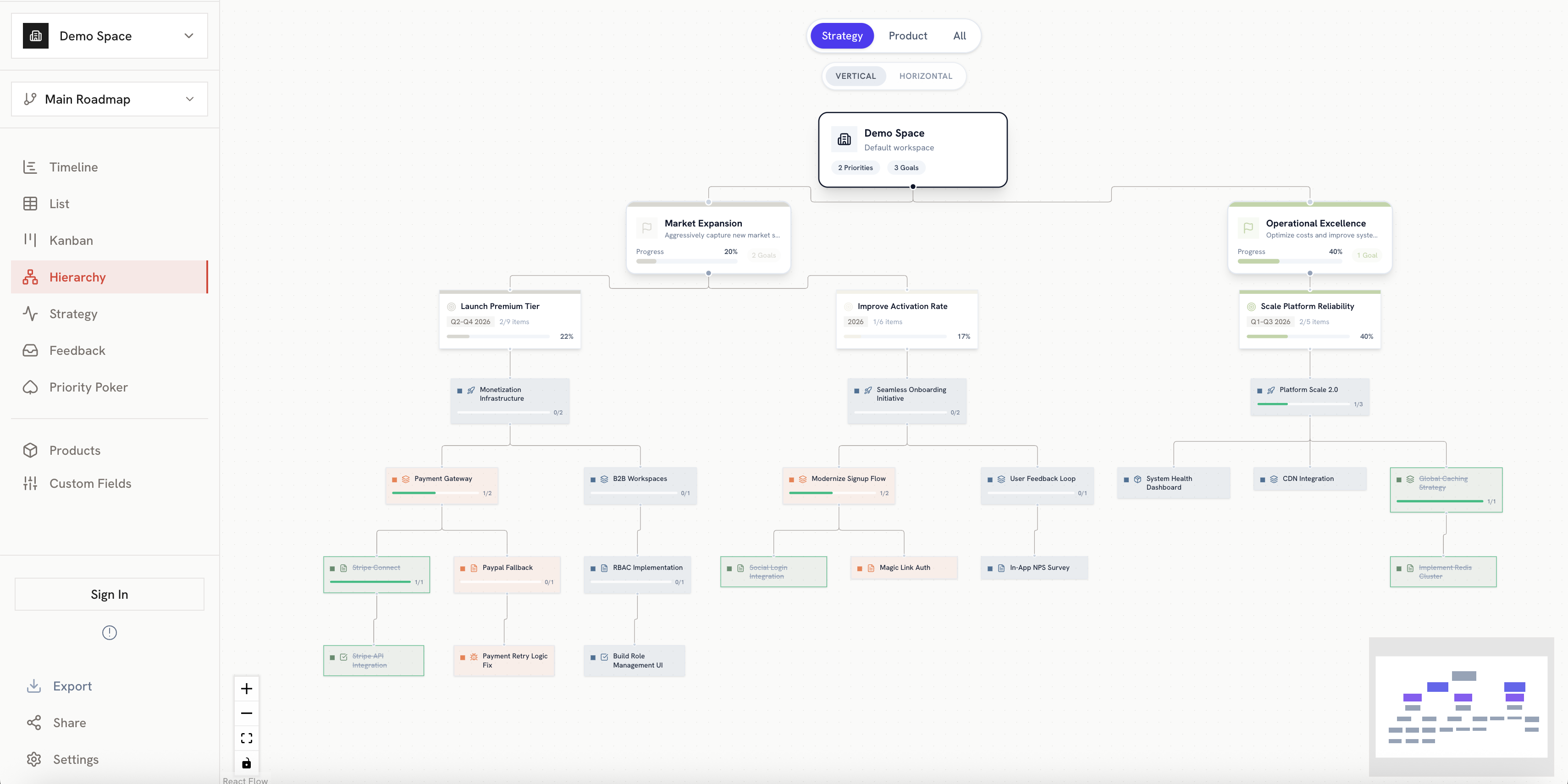
The Hierarchy View displays your items in a flow diagram format, making it easy to understand dependencies and parent-child relationships. It's ideal for visualizing complex structures and tracing work back to strategic initiatives.
 ## Key Features
### Flow Diagram
Items are displayed as nodes connected by lines showing relationships:
* **Nodes**: Each item appears as a card/node
* **Connections**: Lines connect parent items to their children
* **Flow direction**: Typically flows from left to right or top to bottom
### Node Display
Each node shows:
* **Item name**: The title of the item
* **Item type badge**: Color-coded indicator (Initiative, Epic, Story, etc.)
* **Key details**: Status, dates, product area
## Key Features
### Flow Diagram
Items are displayed as nodes connected by lines showing relationships:
* **Nodes**: Each item appears as a card/node
* **Connections**: Lines connect parent items to their children
* **Flow direction**: Typically flows from left to right or top to bottom
### Node Display
Each node shows:
* **Item name**: The title of the item
* **Item type badge**: Color-coded indicator (Initiative, Epic, Story, etc.)
* **Key details**: Status, dates, product area
 ### Multi-Level Hierarchy
The view supports deep nesting:
```
Initiative
└── Epic
└── Story
└── Task
└── Bug
```
Wey supports unlimited nesting depth, so you can model complex product structures.
## Interacting with the View
### Navigation
* **Pan**: Click and drag on the canvas to move around
* **Zoom**: Use scroll wheel or pinch to zoom in/out
* **Fit to view**: Use the toolbar button to fit all nodes on screen
### Selecting Nodes
Click on a node to:
* Highlight the node and its connections
* Open the detail panel for editing
* See related parent and child items
### Expanding/Collapsing
Control which levels are visible:
* **Collapse**: Hide children of a node to simplify the view
* **Expand**: Show all children of a node
* **Expand All / Collapse All**: Use toolbar buttons for bulk actions
## Grouping
Items can be grouped to show organizational context:
### Multi-Level Hierarchy
The view supports deep nesting:
```
Initiative
└── Epic
└── Story
└── Task
└── Bug
```
Wey supports unlimited nesting depth, so you can model complex product structures.
## Interacting with the View
### Navigation
* **Pan**: Click and drag on the canvas to move around
* **Zoom**: Use scroll wheel or pinch to zoom in/out
* **Fit to view**: Use the toolbar button to fit all nodes on screen
### Selecting Nodes
Click on a node to:
* Highlight the node and its connections
* Open the detail panel for editing
* See related parent and child items
### Expanding/Collapsing
Control which levels are visible:
* **Collapse**: Hide children of a node to simplify the view
* **Expand**: Show all children of a node
* **Expand All / Collapse All**: Use toolbar buttons for bulk actions
## Grouping
Items can be grouped to show organizational context:
 | Grouping | Description |
| ------------ | ----------------------------------------- |
| **Product** | Group by Product, then show Product Areas |
| **Priority** | Group by Strategic Priority |
| **None** | Show pure parent-child hierarchy |
## Use Cases
Use the hierarchy view to trace how individual tasks connect back to strategic initiatives.
Visualize complex dependencies and identify potential bottlenecks.
Export the hierarchy view to show work breakdown structure to stakeholders.
Help new team members understand how work is organized and connected.
## Best Practices
* **Start from Initiatives**: Begin at the top level to see the full picture
* **Use grouping**: Group by product to see how different product areas relate
* **Collapse completed work**: Hide finished items to focus on active work
* **Export for documentation**: Use the export feature to include in project docs
## Related
Learn how to create and manage parent-child relationships.
See the same items on a timeline.
| Grouping | Description |
| ------------ | ----------------------------------------- |
| **Product** | Group by Product, then show Product Areas |
| **Priority** | Group by Strategic Priority |
| **None** | Show pure parent-child hierarchy |
## Use Cases
Use the hierarchy view to trace how individual tasks connect back to strategic initiatives.
Visualize complex dependencies and identify potential bottlenecks.
Export the hierarchy view to show work breakdown structure to stakeholders.
Help new team members understand how work is organized and connected.
## Best Practices
* **Start from Initiatives**: Begin at the top level to see the full picture
* **Use grouping**: Group by product to see how different product areas relate
* **Collapse completed work**: Hide finished items to focus on active work
* **Export for documentation**: Use the export feature to include in project docs
## Related
Learn how to create and manage parent-child relationships.
See the same items on a timeline.