> ## Documentation Index
> Fetch the complete documentation index at: https://wey.io/docs/llms.txt
> Use this file to discover all available pages before exploring further.
# Export Options
> Export your roadmap as images, PDFs, or CSV
## Overview
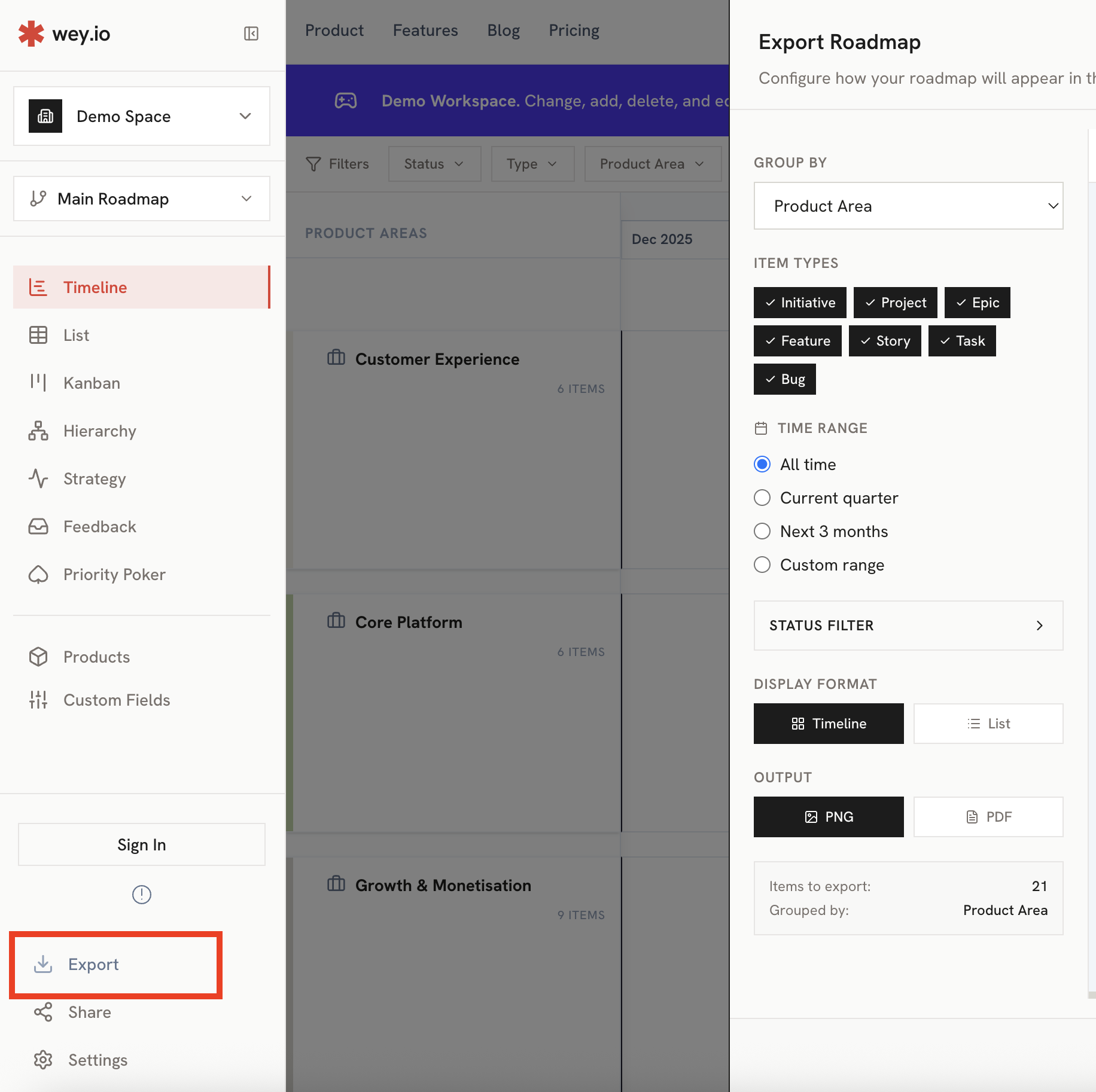
Share your roadmap with stakeholders by exporting it as an image, PDF, or CSV. The interactive export dialog lets you customize your export with a live preview before downloading.
 ## Export Formats
| Format | Description | Best For |
| ------- | --------------------- | ------------------------------------- |
| **PNG** | High-resolution image | Presentations, embedding in documents |
| **PDF** | Multi-page document | Printing, formal documentation, email |
| **CSV** | Spreadsheet data | Analysis, importing to other tools |
## Using the Export Dialog
The export dialog provides a side-by-side configuration and preview experience:
Click the **Export** button in the sidebar or toolbar.
Select how items should be grouped in the export (see Lens Options below).
Choose a time period using presets or custom dates.
Toggle which item types and statuses to include.
Review the live preview, then click **Download** for your preferred format.
## Lens / Grouping Options
Choose how items are organized in your export, independent of your current view:
| Lens | Description | Audience |
| ---------------------- | ------------------------------- | ---------------------------- |
| **Product Area** | Group by team/area ownership | Team leads, sprint planning |
| **Strategic Priority** | Group by priority alignment | Executives, strategy reviews |
| **Goal** | Group by objectives | OKR reviews, goal tracking |
| **Status** | Group by completion status | Project managers, standups |
| **Type** | Group by item type | Backlog reviews |
| **Hierarchy** | Show parent-child relationships | Technical documentation |
Use different lenses to create targeted exports for different audiences—an "Executive Summary" using Priority grouping vs. a "Team Backlog" using Status grouping.
## Date Range Options
Filter items by time period:
| Preset | Description |
| ------------------- | ------------------------------------- |
| **Current Quarter** | Items in the current calendar quarter |
| **Next 3 Months** | Items starting in the next 90 days |
| **All Time** | All items regardless of dates |
| **Custom Range** | Pick specific start and end dates |
## Export Formats
| Format | Description | Best For |
| ------- | --------------------- | ------------------------------------- |
| **PNG** | High-resolution image | Presentations, embedding in documents |
| **PDF** | Multi-page document | Printing, formal documentation, email |
| **CSV** | Spreadsheet data | Analysis, importing to other tools |
## Using the Export Dialog
The export dialog provides a side-by-side configuration and preview experience:
Click the **Export** button in the sidebar or toolbar.
Select how items should be grouped in the export (see Lens Options below).
Choose a time period using presets or custom dates.
Toggle which item types and statuses to include.
Review the live preview, then click **Download** for your preferred format.
## Lens / Grouping Options
Choose how items are organized in your export, independent of your current view:
| Lens | Description | Audience |
| ---------------------- | ------------------------------- | ---------------------------- |
| **Product Area** | Group by team/area ownership | Team leads, sprint planning |
| **Strategic Priority** | Group by priority alignment | Executives, strategy reviews |
| **Goal** | Group by objectives | OKR reviews, goal tracking |
| **Status** | Group by completion status | Project managers, standups |
| **Type** | Group by item type | Backlog reviews |
| **Hierarchy** | Show parent-child relationships | Technical documentation |
Use different lenses to create targeted exports for different audiences—an "Executive Summary" using Priority grouping vs. a "Team Backlog" using Status grouping.
## Date Range Options
Filter items by time period:
| Preset | Description |
| ------------------- | ------------------------------------- |
| **Current Quarter** | Items in the current calendar quarter |
| **Next 3 Months** | Items starting in the next 90 days |
| **All Time** | All items regardless of dates |
| **Custom Range** | Pick specific start and end dates |
 ## Item Filtering
Control which items appear in your export:
### By Item Type
Toggle visibility for each type:
* Initiatives
* Epics
* Stories
* Tasks
* Bugs
### By Status
Show or hide items based on their status.
Filtering lets you create focused exports—for example, showing only Initiatives and Epics for executive summaries.
## Live Preview
The export dialog shows a real-time preview of your export:
* **Instant updates**: Changes to lens, date range, or filters immediately reflect in the preview
* **Scrollable**: Navigate large roadmaps within the preview panel
* **Accurate representation**: What you see is exactly what you'll download
## Item Filtering
Control which items appear in your export:
### By Item Type
Toggle visibility for each type:
* Initiatives
* Epics
* Stories
* Tasks
* Bugs
### By Status
Show or hide items based on their status.
Filtering lets you create focused exports—for example, showing only Initiatives and Epics for executive summaries.
## Live Preview
The export dialog shows a real-time preview of your export:
* **Instant updates**: Changes to lens, date range, or filters immediately reflect in the preview
* **Scrollable**: Navigate large roadmaps within the preview panel
* **Accurate representation**: What you see is exactly what you'll download
 ## Export Views
### Timeline Export
## Export Views
### Timeline Export
 Gantt-style layout showing:
* Items positioned on timeline
* Grouped by your selected lens
* Swimlanes with color coding
* Date headers and gridlines
### List Export
Gantt-style layout showing:
* Items positioned on timeline
* Grouped by your selected lens
* Swimlanes with color coding
* Date headers and gridlines
### List Export
 Table-based layout showing:
* Hierarchical item structure
* All item details (name, type, dates, status)
* Grouped by product area
### CSV Export
Spreadsheet export including:
* All item properties
* Parent relationships
* Dates, status, and assignments
* Ready for further analysis or import
## Export Quality
Exports are generated at high resolution:
* **2x scale** for crisp images on retina displays
* **Automatic orientation** (landscape/portrait) based on content
* **Full data fidelity** - items render from source data, not just visible items
## Best Practices
Use Strategic Priority for executives, Product Area for team leads, Status for project managers.
Hide Tasks and Bugs for high-level presentations. Show all types for detailed planning docs.
Quick presets like "Current Quarter" save time and ensure consistency.
Always review the preview to catch any issues before generating the final export.
Use CSV export when you need to analyze data in spreadsheets or import to other tools.
## Related
Create live, shareable roadmap links.
Learn about the timeline view.
Table-based layout showing:
* Hierarchical item structure
* All item details (name, type, dates, status)
* Grouped by product area
### CSV Export
Spreadsheet export including:
* All item properties
* Parent relationships
* Dates, status, and assignments
* Ready for further analysis or import
## Export Quality
Exports are generated at high resolution:
* **2x scale** for crisp images on retina displays
* **Automatic orientation** (landscape/portrait) based on content
* **Full data fidelity** - items render from source data, not just visible items
## Best Practices
Use Strategic Priority for executives, Product Area for team leads, Status for project managers.
Hide Tasks and Bugs for high-level presentations. Show all types for detailed planning docs.
Quick presets like "Current Quarter" save time and ensure consistency.
Always review the preview to catch any issues before generating the final export.
Use CSV export when you need to analyze data in spreadsheets or import to other tools.
## Related
Create live, shareable roadmap links.
Learn about the timeline view.